Survey
This page will explain how to use the Survey cue of the Cues library.
Survey objects are useful when you need to ask a user to assign values for a series of prompts and would rather their responses be bundled into a single result. Typically, the responses the user gives should be numerical inputs (integers). The result is a dict containing a dict.
Before we start, make sure you have Cues installed.
Setting up
Survey objects have four required parameters and one optional parameter:
Parameters |
Type |
Optional |
Default |
|---|---|---|---|
name |
str |
No |
|
message |
str |
No |
|
scale |
iterable |
No |
|
fields |
iterable |
No |
|
legend |
iterable |
Yes |
[] |
The signature for the __init__ method of a Survey object:
def __init__(self, name, message, scale, fields, legend=[]):
    # ...
We first need to start by importing Survey from the Cues library:
from cues import Survey
Now we need to instantiate a Survey object. We can do this with a little bit of setup by initializing some variables:
name = 'food_survey'
message = 'Please rate the following foods:'
scale = [1, 2, 3, 4, 5]
fields = [
    {
        'name': 'tacos',
        'message': 'Tacos'
    },
    {
        'name': 'pizza',
        'message': 'Pizza'
    },
    {
        'name': 'ribeye_steak',
        'message': 'Ribeye steak'
    }
]
In the code above, we create the variables name and message:
namewill be used to retrieve the results from aSurveyobjectmessageis the text that will be displayed to the user
The scale variable contains a range of values that the user can choose from.
- The sorting of these values should be consistent
Ideally ascending or descending order
The fields variable should be an iterable of dict objects that all contain name and message keys.
The name keys will be used to retrieve the input from the user
Once we have the setup complete, we can instantiate a Survey object and ask the user for a response by invoking our instance’s send method:
cue = Survey(name, message, scale, fields)
answer = cue.send()
When you “send” the cue to the user, they will be presented with something that looks like the following:
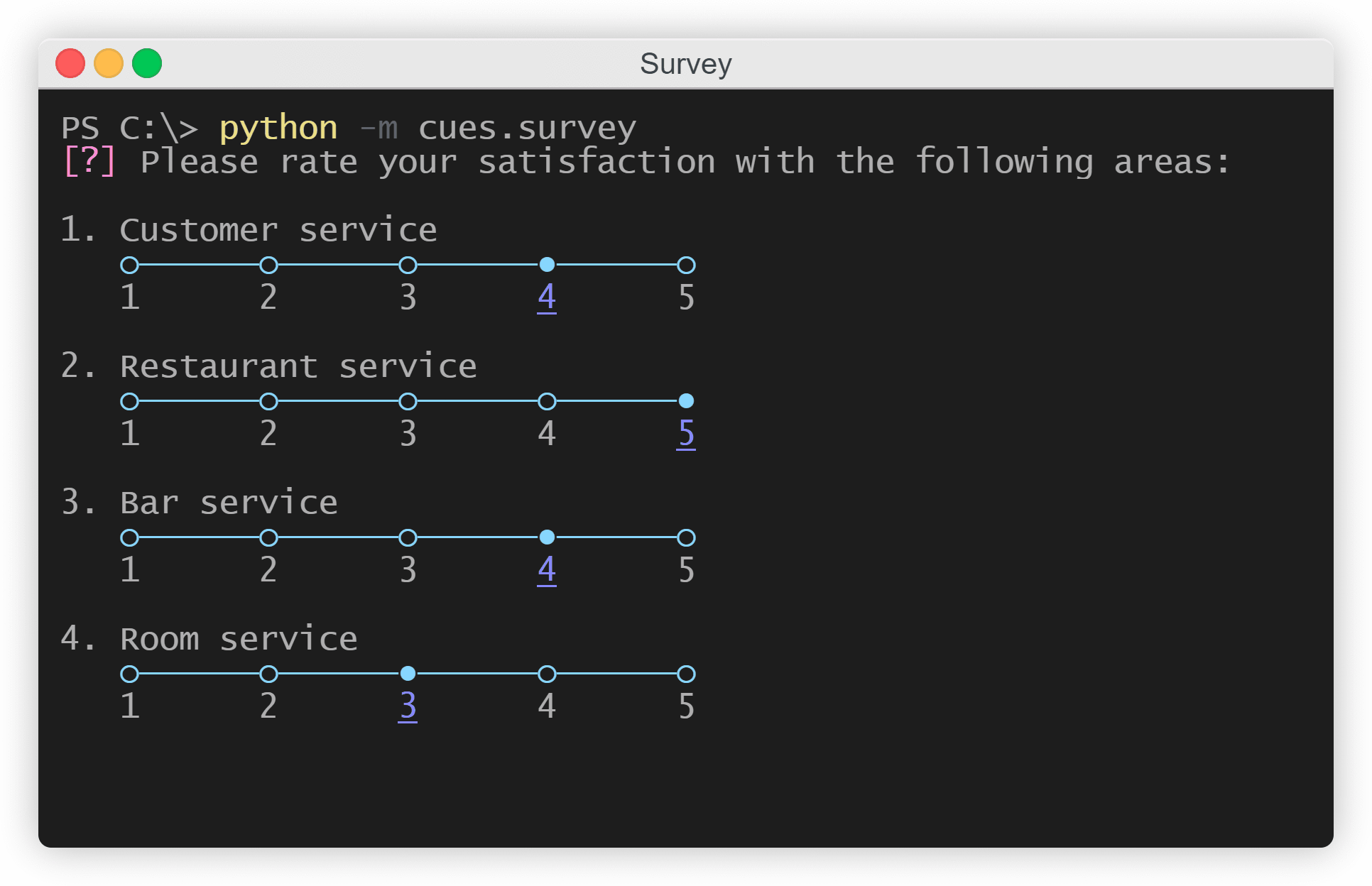
The Survey cue
Once the user fills out the survey, a dict object will be returned containing a key-value pair that consists of the name variable and another dict. This second dict will consist of the name keys from the fields variable and the values the user chose from the scale variable. The result will resemble the following:
{
    'food_survey': {
        'tacos': 5,
        'pizza': 4,
        'ribeye_steak': 4
    }
}
That’s why it’s important to have a good string for the name parameter.
Instantiating from a dict
In the previous example, we instantiated a Survey object by creating 4 separate variables for the name, message, scale, and fields parameters. However, we can also make use of the class’s from_dict classmethod (something that all Cue objects have).
from cues import Survey

survey_dict = {
    'name': 'food_survey',
    'message': 'Please rate the following foods:',
    'scale': [1, 2, 3, 4, 5],
    'fields': [
        {
            'name': 'tacos',
            'message': 'Tacos'
        },
        {
            'name': 'pizza',
            'message': 'Pizza'
        },
        {
            'name': 'ribeye_steak',
            'message': 'Ribeye steak'
        }
    ]
}

cue = Survey.from_dict(survey_dict)
answer = cue.send()
It’s critical that the key value names are the same as the parameter names. When you use the from_dict method, the method will search for a name, message, scale, fields, and legend key.
The legend parameter
There’s one parameter that we haven’t talked about yet: the optional legend parameter.
This parameter can be used to include a legend to define the values of the scale parameter. For example:
1 : Very poor 2 : Poor 3 : Average 4 : Good 5 : Very good
The legend parameter should be given an iterable of strings, with the order of the strings matching that of the scale’s values:
from cues import Survey


name = 'food_survey'
message = 'Please rate the following foods:'
scale = [1, 2, 3, 4, 5]
fields = [
    {
        'name': 'tacos',
        'message': 'Tacos'
    },
    {
        'name': 'pizza',
        'message': 'Pizza'
    },
    {
        'name': 'ribeye_steak',
        'message': 'Ribeye steak'
    }
]
legend = [
    'Very poor',
    'Poor',
    'Average',
    'Good',
    'Very good'
]

cue = Survey(name, message, scale, fields, legend)
answer = cue.send()
If a legend is included, it will appear above the actual survey prompt. However, there are two different visual formats for the legend. There’s a vertical version and a horizontal version:
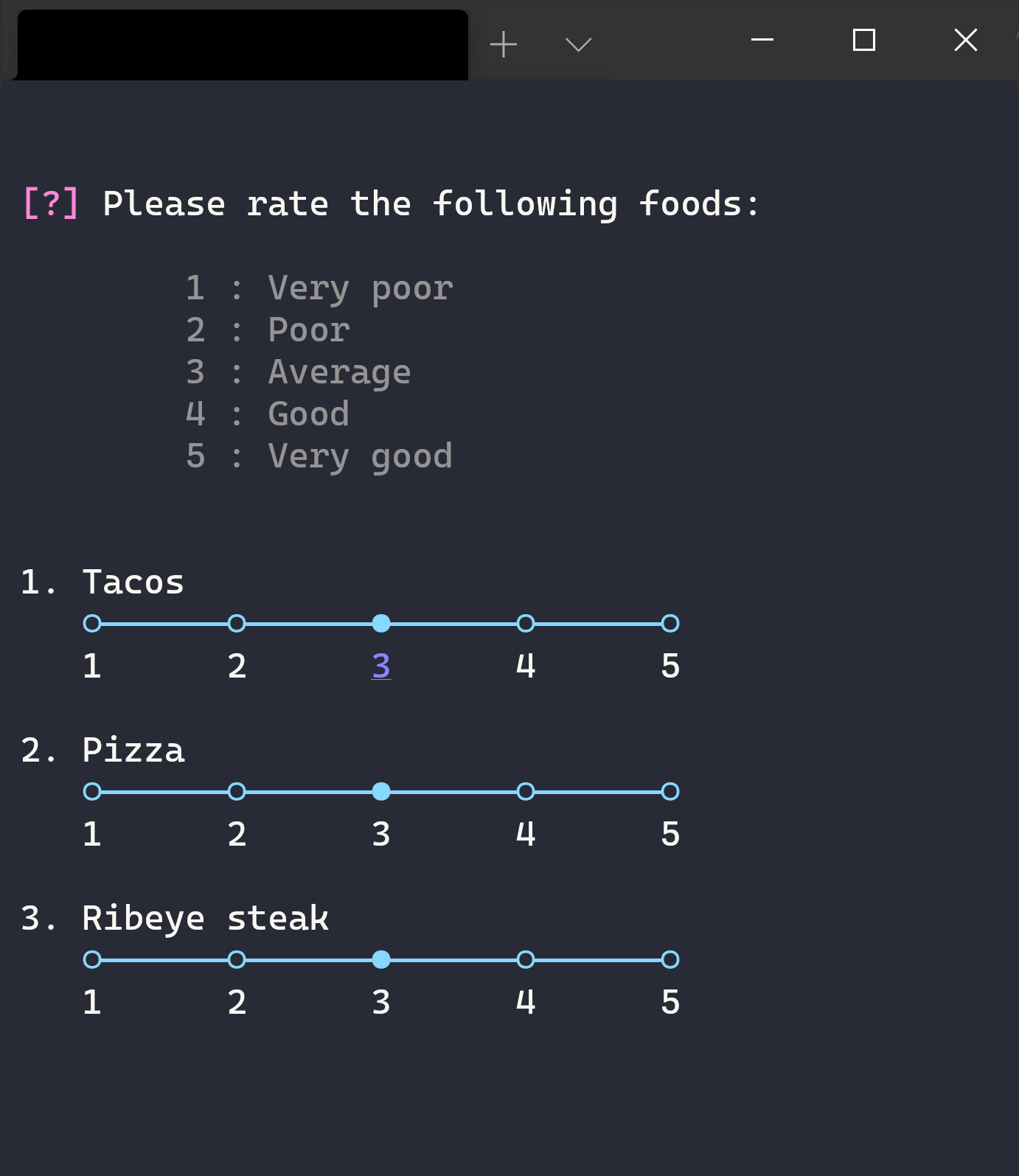
Vertical¶ |
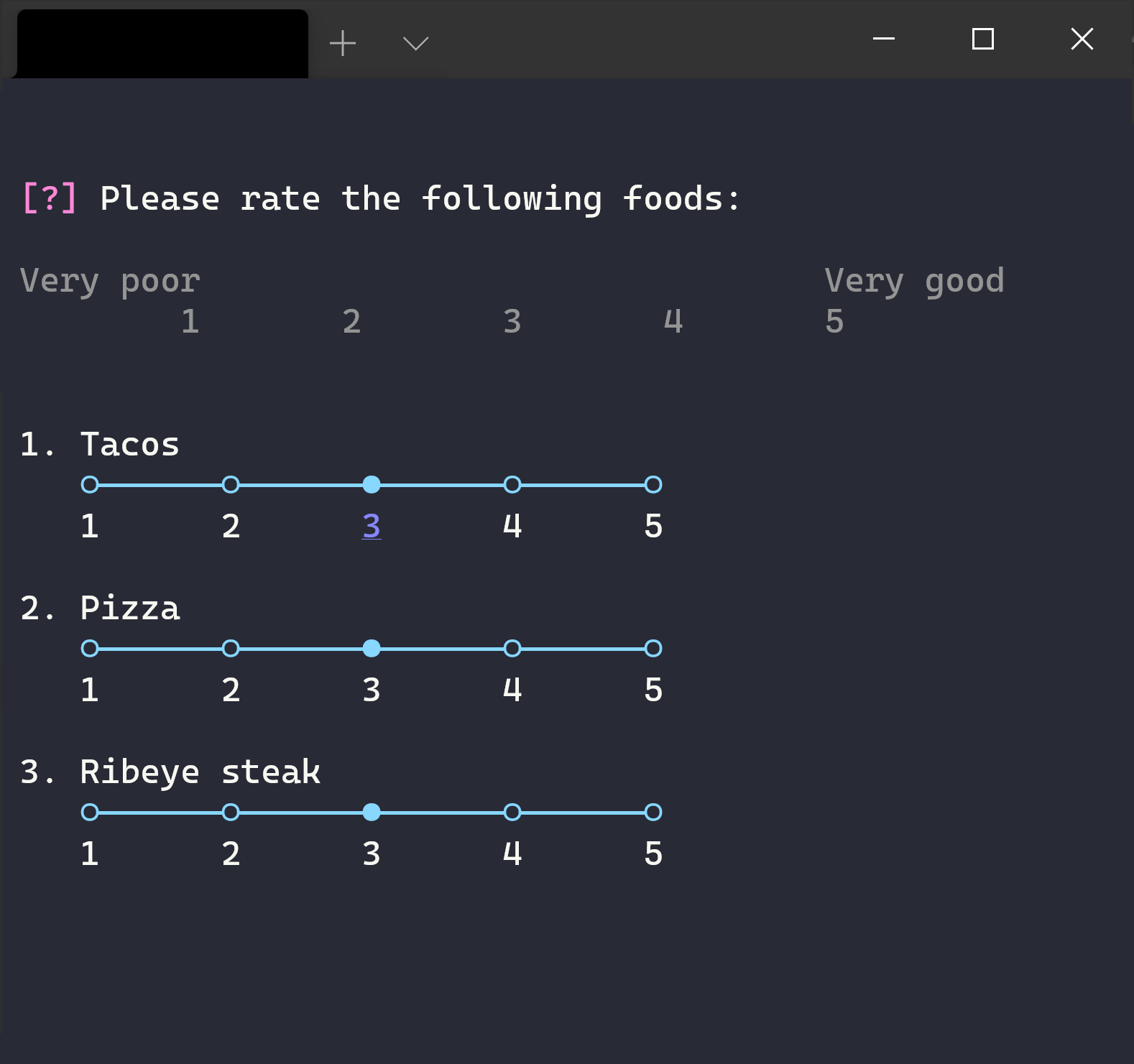
Horizontal¶ |
Vertical legend
The vertical version of the legend can be created by passing to the legend parameter an iterable that is of equal length to the iterable passed to the scale parameter. In short:
len(legend) == len(scale) # this must be True
Horizontal legend
The horizontal version of the legend can be created by passing an iterable with only 2 elements (nothing smaller or greater than 2). For example:
legend = ['Very poor', 'Very good']
len(legend) == 2  # this must be True
Avoiding legend altogether
Incidentally, if you would like to create a legend without having to use the legend parameter, you can do exactly that by using the scale parameter!
Instead of passing an iterable such as a list, you could instead pass a dict that treats the keys as the range of the scale and their respective values as the legend definitions:
scale = {
    1: 'Very poor',
    2: 'Poor',
    3: 'Average',
    4: 'Good',
    5: 'Very good'
}
If you decide to go with this method, you can avoid having to pass another iterable to the legend parameter.
Note
This method will only create a vertical legend. If you prefer the look of the horizontal legend, you will need to pass a separate iterable to the legend parameter.
It should be noted as well that if you decide to pass a dict to the scale parameter and pass an iterable to the legend parameter, the legend parameter’s value will override that of the scale parameter.